
The Tells: 19 Small Details Inside Your App Store Screenshots That Give You Away
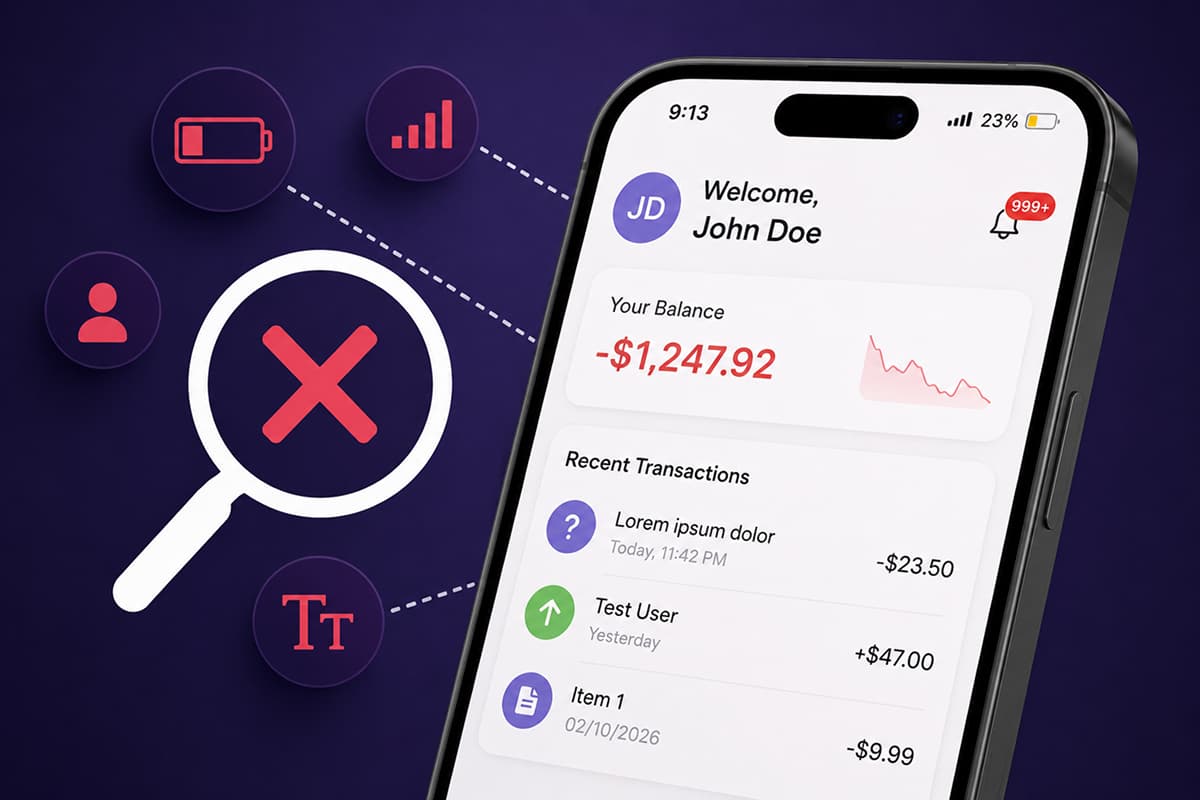
Status bars at 23%. Lorem ipsum that made it to ship. An iPhone X frame in 2026. The tiny details inside the frame — not the design around it — that quietly mark a listing as amateur.
Every detail you didn't think anyone would notice. The reader notices.
A designer's post does the rounds on X every few months. They circle a single corner of an App Store screenshot — the battery icon, sitting at 10% — and caption it "pay attention to the small details." The comments fill in the rest with screenshots of the same crime: 8% battery on a productivity app, "No Service" on a messaging app, Lorem ipsum in the first chat bubble of a team-collaboration listing.
Most writing about App Store screenshots covers the macro stuff — caption, typography, layout, story arc. We've written that post too. This one is the opposite: a checklist of the micro tells inside the frame. The stuff a designer registers in the first half-second. The stuff users feel without naming. The stuff that decides whether your screenshot reads as a real app or as a stock template someone bought yesterday.
The list is loosely grouped by where the tell lives: the status bar, the content inside the UI, the device frame, and the strip as a whole. Most of these take ten seconds to fix. Most listings ship with several of them anyway, because the team that designs the screenshots is rarely the team that does the final pass.
The status bar
The status bar is the most-photographed strip of UI in the world. It is also the most-broken in App Store listings. There is no excuse for any of the items in this section — Apple ships a one-line command (xcrun simctl status_bar override) that fixes them all. If you don't use the simulator, your screenshot tool almost certainly has a status-bar override panel. Use it.
1. The battery is not full
This is the canonical tell. A screenshot showing 23% battery — or 8%, or worse, the yellow Low Power Mode battery — plants a quiet thought in the reader's head: this app drains my phone. They don't think it consciously. They just feel it, and they scroll on. Set the battery to 100% on every slide and never deviate.
2. The signal is partial. Or worse, "No Service"
A messaging app, a maps app, a delivery app showing one bar of cell signal is an own goal. The screenshot is asking the user to imagine using your app on the go; the status bar is telling them it won't work when they need it. Full bars, full WiFi, every slide.
3. The carrier name is showing
"T-Mobile", "Verizon", "EE". Apple's own marketing screenshots never show a carrier. Yours shouldn't either — it dates the screenshot, it geo-restricts it to one country, and it adds noise to the most-scrutinized strip of pixels on the page. Set the operator name to an empty string.
4. The time and battery drift across the strip
This is the worst version of the status-bar tells, because it's visible without zooming in. Screenshot 1 is 9:41 and 100%, screenshot 2 is 14:22 and 87%, screenshot 3 is 9:13 and 64%. The user's eye flicks between the slides — the strip is meant to read as one frozen moment of a day, and the values jumping around kill that read instantly. Pick one set of values. Keep them everywhere.
5. A Focus or silent-mode crescent moon is visible
The small moon icon next to the time means Do Not Disturb is on. On a meditation app it's a wink. On almost any other app it's a careless capture from someone's actual phone with their actual settings. Turn off every Focus and notification indicator before you screenshot.
The content inside the frame
The status bar is one command. The data inside the UI is harder — it requires you to log into the app with a believable seeded account and actually use it before you capture. Most listings skip this step and pay for it in conversion.
6. Lorem ipsum
This still ships in 2026. A finance app with "Lorem ipsum dolor sit amet" in a transaction memo. A note-taking app whose first three notes are titled "Lorem", "Ipsum", and "Dolor". If a user can read your screenshot at thumbnail size and see Latin filler text, they have learned that nobody on your team did a final pass before hitting submit. That is the message you have sent.
7. "John Doe", "Test User", "user@example.com"
The placeholder-name epidemic. Chat apps with "John" messaging "Jane." Profile screens with "test@gmail.com" as the email. Address books with "User 1", "User 2", "User 3." Real apps have real names — pick three or four believable ones and use them consistently across the strip. "Maya Reyes", "Tom Bridges", "Priya Nair" do more work than any caption you write.
8. Sequential dummy data — "Item 1, Item 2, Item 3"
Lists of "Task 1, Task 2, Task 3" or "Project Alpha, Project Beta, Project Gamma." The user doesn't see a productivity app; they see a developer's test seed. Fill the list with realistic items — "Pick up dry cleaning", "Q4 hiring plan", "Renew passport." Specific content is the proof.
9. Numbers that don't make sense in context
A savings goal app showing -$1,247.92. A step counter showing 47 steps for the day. A reading app showing "estimated time remaining: 1872 hours." These are the kinds of numbers a developer types to test that the numbers render. They aren't the kinds of numbers a real user has. Audit every visible number in your screenshots and ask: would a real user have this?
10. A default avatar with initials that don't match the name
A profile reading "Sarah Chen" with a colored circle showing the letters "JD." The avatar fell back to a placeholder because no upload was wired in, and nobody on the team checked. Either upload real avatars, or make the fallback initials match the visible name, or hide the avatar entirely.
11. The "current user" is a different person on different slides
Screenshot 1: logged in as "Maya." Screenshot 3: logged in as "Alex." Screenshot 5: a third name in the corner. This happens when slides are captured weeks apart and nobody maintains a consistent demo account. The user is meant to imagine themselves using the app; the parade of identities breaks that illusion every time the eye moves.
12. An empty state pretending to be the main feature
A screenshot of "All caught up!" in an email app's hero slide. A "No tasks yet — add one to get started" card in a to-do app's first screenshot. These are real screens in the app, but they are the wrong screens to show in marketing. The screenshot's job is to show the app at its best — full, in use, doing work. Show the work.
13. Notification badges showing 0 or 999+
A tab bar with a badge of 0 is decorative noise — remove it, it shouldn't render. A badge of 999+ implies your app is overwhelming, regardless of what the rest of the screenshot says. The reader's eye goes straight to red badges before anything else; pick numbers that help the pitch (a believable 3, a confident 7), not numbers that contradict it.
The device frame and chrome
These are the tells that mark the screenshot tool, not the app.
14. An iPhone X — or 11, or 13 — frame in 2026
The notch-era frame ships in some screenshot tools as a default because it was the default in 2018. It dates your listing instantly to anyone who has bought a phone in the last three years. Use a current-generation frame; if your tool's templates are still stuck on the old shape, change tools.
15. The Dynamic Island is visible when no app is using it
The Dynamic Island only renders as the long pill when an app is actively using it — a timer, a Live Activity, a call. In a static screenshot of, say, a shopping app's product page, it should appear as the small camera/sensor cluster, not the elongated pill. Getting this wrong is a quiet signal that the screenshot was composed by someone who doesn't actually use the device.
16. A dark-mode UI inside a white device frame
A pitch-black iPhone bezel around a screenshot of a bright white app interface looks fine — high contrast, intentional. A dark-mode app interface inside a white iPhone frame creates a clash that wasn't art-directed; it was accidental. Match the device frame color to the dominant tone of the app inside it, or pick one frame color and design the app shots around it.
The strip as a whole
These tells don't live in any one slide. They live in the rhythm across the six or eight or ten of them.
17. The localization is half-done
The first three screenshots are in German. The next three are still in English because nobody got around to them. Or the captions are translated but the app UI captured inside the frame is still in English. A half-localized listing reads as worse than a fully English one — it tells the user you started to care about their market and then stopped. Either localize the whole strip or none of it.
18. The currency, date, and number format don't match the market
A US-targeted screenshot showing prices in £, or dates in DD/MM/YYYY. A German-targeted screenshot showing $ everywhere and MM/DD/YYYY in the calendar slide. The reader registers it as "this app isn't really for me" before they read the caption. If you ship to a market, format the visible numbers, dates, and currencies for that market.
19. The in-app timestamps contradict the status bar
The status bar says 9:41 AM. The chat message inside the app says "Yesterday at 11:42 PM." The notification banner says "now" but the time hasn't moved across the strip. These small temporal contradictions don't register consciously, but they break the sense that the screenshot is a coherent moment. If you set the status bar to 9:41, make sure the in-app times read like 9:41 actually happened.
The working checklist
If you want the short version to run before you upload:
- Battery 100%, full signal, no carrier — on every slide.
- No Focus moon, no notification indicators, no stray status-bar icons.
- No Lorem ipsum, no "John Doe", no sequential dummy lists. Real names, plausible numbers, content that reads.
- Same demo user across the strip. Same avatar, same handle, same display name.
- Current-generation device frame. Dynamic Island in its correct static state. Frame color matched to the UI inside it.
- Same time and battery across all slides. The strip is one frozen moment.
- Localization is complete or not started — never half. Currency, dates, and numbers formatted for the market.
Most of these are ten-second fixes. They ship anyway because the team designing the screenshots is rarely the team reviewing them, and nobody does the final pass at thumbnail size on an actual phone. Do that pass. Open your App Store Connect preview, hold the phone at arm's length, look for the tells. They're usually all still there.
Design store-ready screenshots in minutes — free, no export watermarks.
Launch Shots is free to start. Every template (110+), 220+ device frames plus 3D mockups, AI localization, and direct upload to App Store Connect and Google Play Console. No credit card needed.
Start creating free →The macro decisions — caption, layout, story arc — are what most posts about App Store screenshots cover, and they matter. But the micro decisions are what make a listing look like the app is run by people who care. The reader notices the carrier name. The reader notices the 23% battery. The reader notices that the chat starts with "John" messaging "Jane" about "Lorem ipsum." They don't say so. They just scroll on.