
Introducing the LaunchShots MCP Server: Store Screenshots From Inside Your Coding Agent
Your coding agent already knows your app. Now it can turn your screenshots into a finished, editable App Store and Google Play set — without you leaving your editor.
Your coding agent already knows your app. Now it can turn your screenshots into a finished, editable App Store and Google Play set — without you leaving your editor.
The release is ready. The build is uploaded.
And then comes the part nobody plans for: the store screenshots.
For a lot of us, that means stopping what we're doing, opening a design tool, grabbing captures from the simulator, writing headlines from scratch, and trying to remember what the app actually does best — even though we just spent weeks building it.
Meanwhile, the coding agent sitting in our terminal has read the README, knows every screen, and understands what the app is for. It just had no way to help with this part.
So we gave it one.
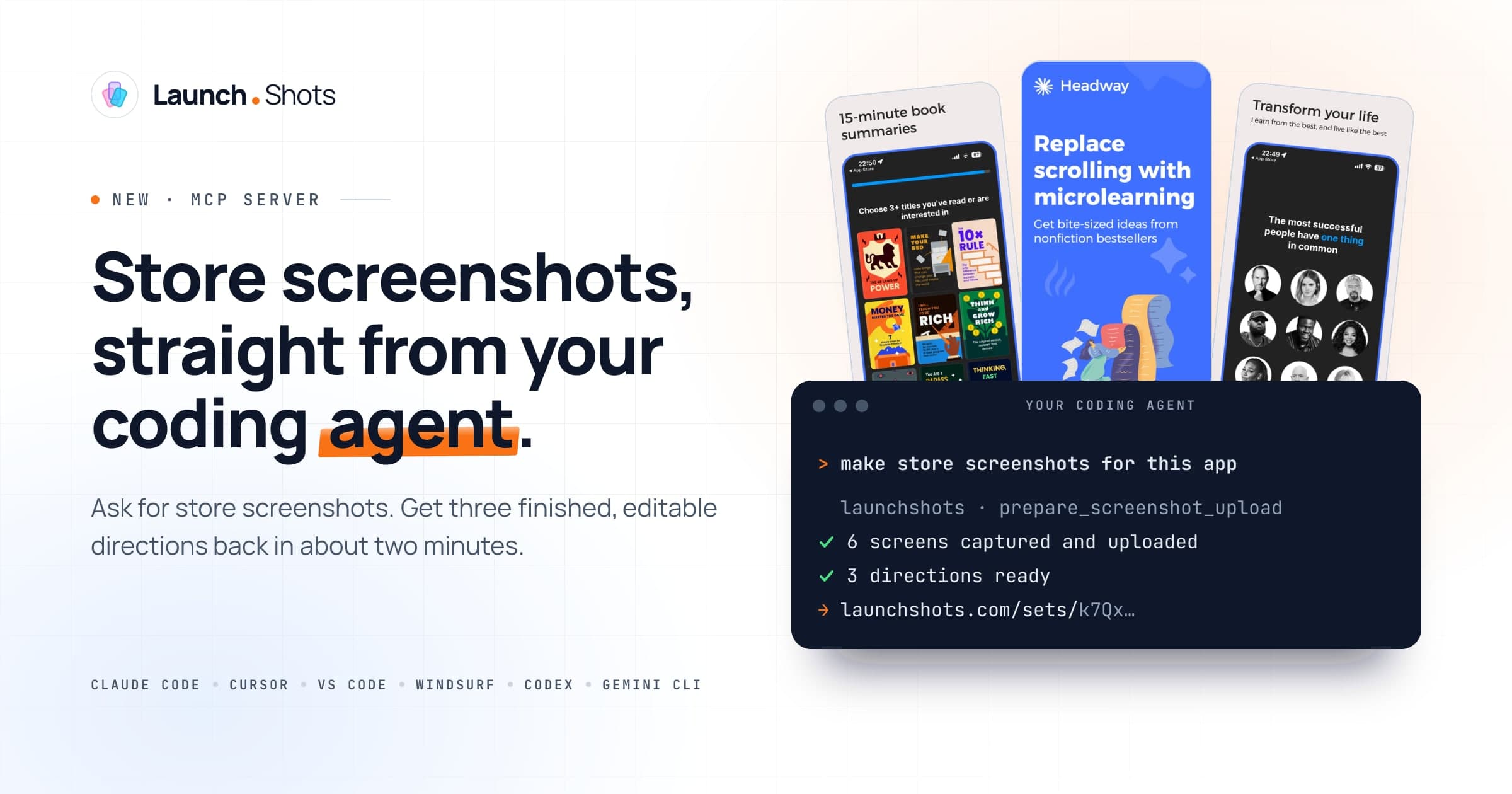
Today, we're launching the LaunchShots MCP server. It lets coding agents like Claude Code, Cursor, VS Code, Windsurf, Codex and Gemini CLI create store screenshot sets for you, right from your codebase.
How It Works
Once it's connected, you ask your agent for store screenshots. That's the whole interface.
Behind the scenes, the agent:
- Picks three to eight of your app's most important screens and captures them, from a simulator or emulator if it needs to.
- Reads your README or existing store copy to describe what the app does, who it's for and what makes it different.
- Uploads the screenshots to LaunchShots.
- Waits a minute or two while the set is designed.
Then it hands you a review link.
On that page you'll see your set in three art directions, all sharing one set of headlines written for each screen. Pick the one you like and it opens in the LaunchShots editor as a normal project.
Nothing is locked in. Every headline, color and device frame stays editable, and you can export at every store size like any other project.
Why Put This in the Agent?
Store screenshot headlines are only as good as what you know about the app. Generic input gives you generic headlines.
Your agent has better context than any form we could put in front of you. It can see which features matter, it knows the app's real name and positioning, and it can grab screens with realistic content in them instead of empty states.
It also means you don't have to switch context. You can ask for screenshots in the same session where you just fixed the last bug before release.
Getting Started
If you use Claude Code, it's one line:
claude mcp add --transport http launchshots https://www.launchshots.com/api/mcpThen ask for store screenshots, or run /mcp__launchshots__store_screenshots to start the full workflow.
Cursor, VS Code, Windsurf, Codex CLI and Gemini CLI each take a short config snippet, and Claude.ai and Claude Desktop can add it as a custom connector. You'll find copy-ready setup for every client on the MCP docs page.
A Small Tip
The agent is told this already, but it helps to say which screens you care about. Screens with real-looking content make much better headlines than login walls, onboarding screens or anything with a debug banner on it.
Try It Without an Account
You don't need to sign up to try it. Without an API key, your agent can make a set from a small free daily allowance we share across everyone, and you create a free account from the review link if you want to keep it.
If you'd like sets to go straight into your account, create an API key in your account settings and add it to the config. With a key, it costs the same as generating in the app: new accounts get free generations to start with, then each set is one credit, or included on the Launch Kit and unlimited plans. With a key, your agent can also make a tablet set.
If a run fails for any reason, it's refunded automatically and your agent can simply try again.
What Happens to Your Screenshots
Uploaded screenshots are stored privately and used only to design your set. When you open the set, they're copied into your project like any other upload. A set nobody opens is deleted after 14 days (30 days with an API key).
Treat the review link like a private doc link: anyone who has it can see the set. Sets made with an API key can only be opened into the account that key belongs to.
Connect your coding agent to LaunchShots in under a minute.
Install lines for Claude Code, Cursor, VS Code, Windsurf, Codex CLI, Gemini CLI and more, plus the full list of tools your agent can use.
Read the MCP docs →Still Early
This is the first version, and we're still learning how people want to use it. Maybe you'll want your agent to refresh screenshots on every release, or to make a set for each new feature. We're curious to find out.
If you try it, we'd love to hear how it went — what worked, what felt off, and what you wish your agent could do next.
Happy shipping.